The web UI
Everything a person does with ssoossh outside a terminal happens in one web UI: approving requests, confirming console logins, reading their own history, managing service codes, and – for the roles that have it – administering the deployment. This page is the map of that UI. What each screen means is on the pages it links to; this one is about finding your way around.
Signing in
Section titled “Signing in”There is no password. The sign-in screen hands you to the deployment’s identity provider and takes you back afterwards. If a deployment sets a consent notice, it stands in front of the sign-in button and has to be accepted before anything else is clickable.
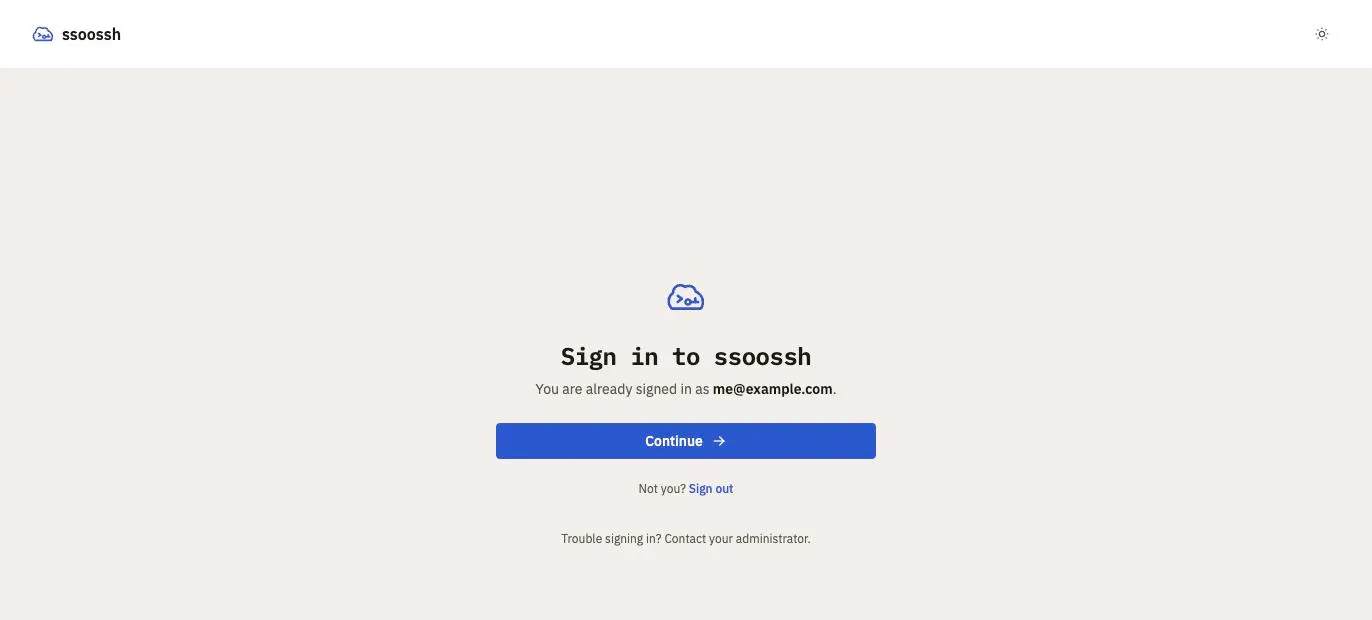
The sign-in screen. Opening an approval link while signed out lands here first and returns to the request afterwards.
Most people never open the UI by hand. They arrive on an approval link the client printed, sign in, decide, and leave. The rest of this page is for when you do open it by hand.
The navigation rail
Section titled “The navigation rail”Signed in, the app has one navigation surface: the rail down the left edge. It holds the brand, every destination, and – at its bottom edge – your identity, which opens into the account controls.
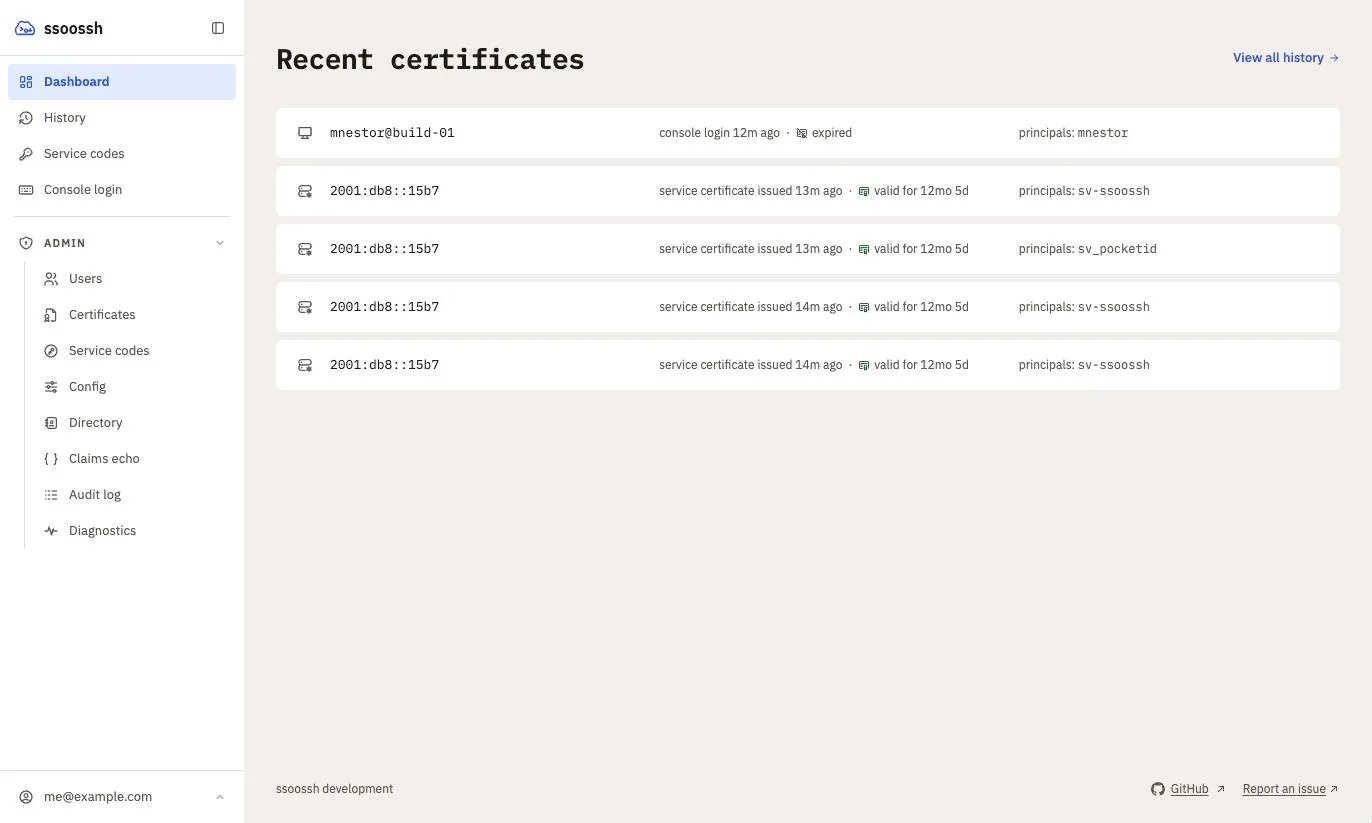
The dashboard, with the rail expanded and the Admin group open. Someone without an admin role sees the rail without that group.
The rail has a few behaviours worth knowing:
- It collapses. The control at the head of the column, beside the wordmark, folds the rail down to an icon strip. Collapsed, the mark itself is the button that brings it back. The choice is remembered in the browser.
- Admin is a group inside the same rail, shown only to auditors, SOC members and admins. It can be folded shut, and that is remembered too – except that landing on any admin page opens it, because arriving in the admin area with its section list hidden is never what you meant. SOC members and auditors see only the sections their role can use: the Directory, Claims echo and Diagnostics are admin-only, so the group leaves them out, and opening one by its address shows a “You do not have access to this page” card.
- Your identity is a menu. The row at the bottom opens a drop-up holding the account page, preferences, the theme switch, and sign-out. These are deliberately not in the destination list: they act on the session, not on the app.
- On a narrow screen the same rail becomes a drawer behind a single button, always expanded, so a phone and a desktop can never disagree about what the app contains.
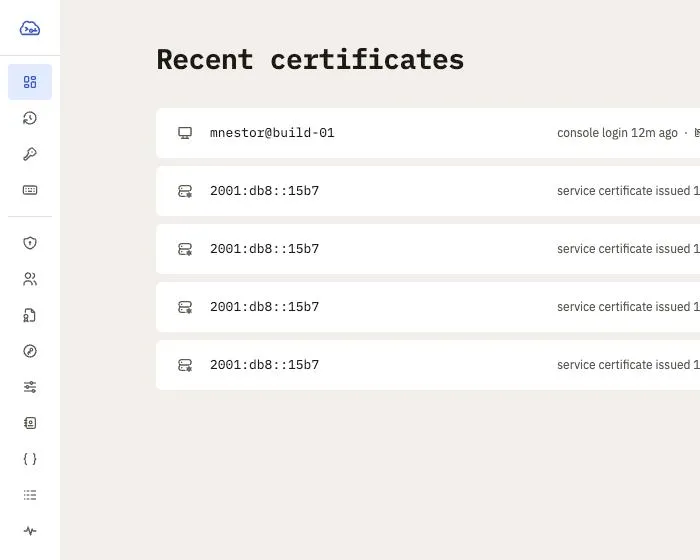
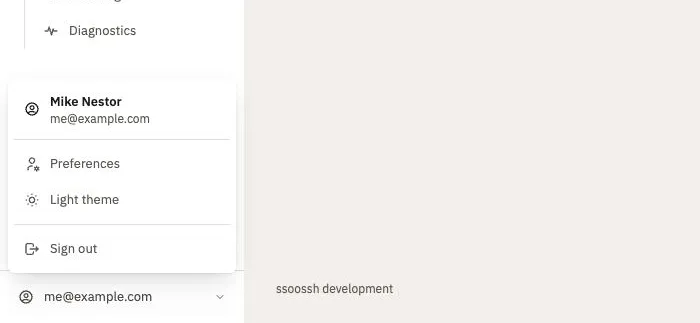
Left: the rail collapsed. Right: the drop-up behind the identity row, where the account page, preferences, the theme and sign-out live.
Three screens have no rail at all: sign-in, a console code link (/c/<code>),
and the page shown when an approval link cannot proceed. They are reached
before or outside a session, and a column of destinations beside them would
only invite you to wander off. The approval page itself is inside the app:
reaching it means signing in, so it keeps the rail.
Where everything lives
Section titled “Where everything lives”| Page | Path | What it holds | Who sees it |
|---|---|---|---|
| Dashboard | /dashboard |
Your recent certificates, newest first | everyone |
| History | /logs/me |
Your full certificate history, searchable and filterable by type, status and outcome | everyone |
| Service codes | /service-codes |
The service accounts you hold, then the codes approved for each | everyone |
| Console login | /console |
Where you type the code a console showed you | everyone |
| Account | /account |
Your identity, the principals you can mint, your service accounts, and your groups | everyone, from the identity drop-up |
| Preferences | /preferences |
Which notification emails you receive, and how much detail the approval and detail pages show | everyone, from the identity drop-up |
| Users | /admin/users |
The user directory, with disable and re-enable | auditor to view; SOC and up to disable or re-enable |
| Certificates | /admin/certificates |
Certificate history across every user | auditor and up |
| Service codes | /admin/service-codes |
Every approved enrollment code, searchable by id, account, key ID, request id or approver | auditor and up |
| Config | /admin/config |
The effective server configuration, secrets redacted | admin |
| Directory | /admin/directory |
The LDAP sync’s last pass, a sync (a dry run by default; a live pass asks for confirmation), and a read-only probe | admin |
| Claims echo | /admin/identity/echo |
Your own decoded ID token, annotated by the field that consumes each claim | admin |
| Audit log | /admin/audit |
Recent administrative activity, filterable by action and source address | auditor and up |
| Diagnostics | /admin/diagnostics |
Read-only checks of the deployment’s public URL, proxy trust and edge headers | admin |
What each of these shows, and what the roles mean, is on Approving in the browser, Service accounts, and Roles and containment.
Detail pages you can link to
Section titled “Detail pages you can link to”A certificate, a service code, and an admin’s view of a service code are each
a page with its own address – /certs/<id>, /service-codes/<id>, and
/admin/service-codes/<id> – rather than a panel over a list. That means a
detail can be reloaded, bookmarked, pasted into a ticket, and left with the
browser’s own Back button. Each carries a back chip naming the list it was
opened from.
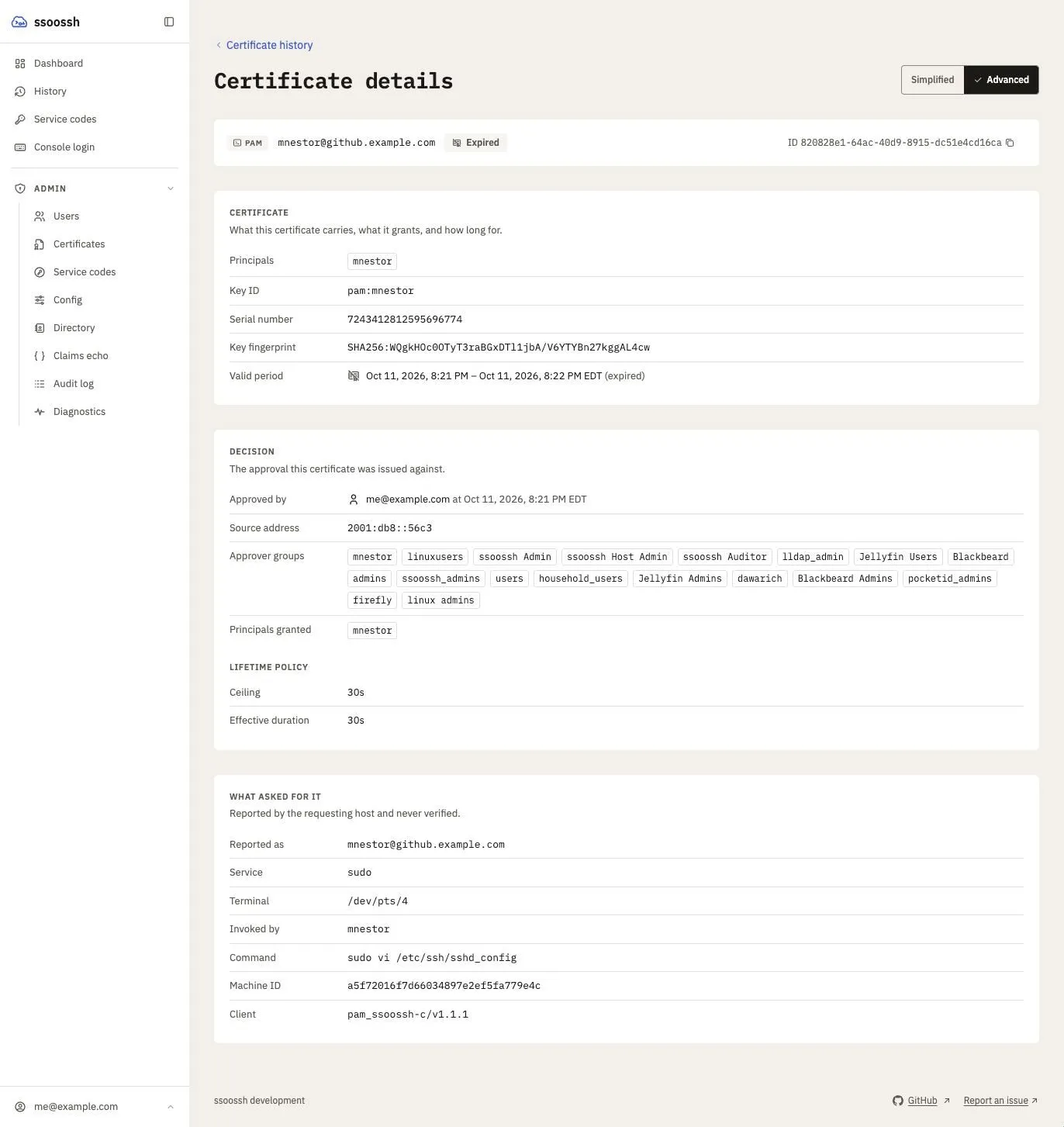
A PAM certificate's detail page. The "What asked for it" section at the bottom is what the requesting host reported about itself, labelled as never verified.
Simplified and Advanced
Section titled “Simplified and Advanced”The approval page and the three detail pages each carry a Simplified / Advanced switch in their heading. Advanced is the whole page. Simplified keeps what you need to decide or to understand the result and leaves out what an expert compares: ids, key ids, serials and fingerprints, public keys, process ids, the reporting client, timestamps other than the validity window, approver groups, lifetime-policy detail, and the redemption history. Facts that remain are set a size larger, and the page closes with a line naming what was left out and a button back to Advanced.
Simplified never hides a warning or anything the server cut. Extensions and critical options the server trimmed (struck through) with the “Less than was requested” notice, the requesting machine’s own policy note, a console request that reports a remote host, a skewed host clock, an expired or blocked request, and any error all show at both levels.
The switch on each page and the Display section on Preferences are the same setting. It is saved to your account, so it follows you to any browser. Your first sign-in sets it: Advanced if you are in the SOC or admin group, Simplified otherwise. Changing groups later does not change it; only you do.
Emails have a level of their own, set under Email notifications on the same page, so you can keep the full pages and still get short mail.
When something does not load
Section titled “When something does not load”A page that cannot load says what failed and offers Try again, which asks the server again without leaving the page. A list that failed to load never shows its empty state underneath, so “could not load your certificates” is never mistaken for “you have none”. A request link that cannot be retried, one that is already claimed or no longer exists, leads back to the dashboard.
Theme, and the footer
Section titled “Theme, and the footer”The theme switch in the identity drop-up steps between light, dark, and following the system. It is a browser preference, not an account setting.
The footer names the build. A tagged release shows its version linked to the
GitHub release; an untagged build shows development and a short commit. A
deployment can hide or replace this – see
what the version endpoint discloses.
Where to go next
Section titled “Where to go next”- Approving in the browser – the approval page, console codes, your history, and preferences.
- Service accounts – what the service codes pages hold and what a holder can do there.
- Roles and containment – the admin pages, for the people who have them.