Approving in the browser
Every certificate ssoossh issues is approved by a human in a browser. This page is the tour of what you see there: signing in, the approval page itself, confirming a console login by code, your own history, and the preferences that decide which emails you get. It ends with what an administrator can do to your account, since that is the other thing the web UI holds.
For the layout of the UI itself – the rail, where each page lives, and the detail pages you can link to – see The web UI.
Signing in
Section titled “Signing in”The client prints an approval URL and waits. Opening it takes you through your identity provider; the server never sees a password. If you are not signed in when you open the link, you land on the sign-in screen first, including any consent notice the deployment sets, and come back to the request afterwards.
The URL can be opened in any browser, including one on a different device from
the machine running ssh. The browser’s address does not affect the
certificate: the lifetime policy is judged on the address the client’s request
came from.
sequenceDiagram
    accTitle: Signing in to approve a request
    accDescr {
      The approver opens the approval URL. The server sends an authorization
      request to the OIDC provider and receives identity claims back, trims
      the requested options to what configuration permits, applies the
      lifetime policy, and renders the approval page. The approver approves or
      denies.
    }
    autonumber
    actor User
    participant Browser
    participant Server as ssoossh server
    participant IdP as OIDC provider

    User->>Browser: open the approval URL
    Browser->>Server: authorization request
    Server->>IdP: OIDC authentication
    IdP-->>Server: identity claims
    Server->>Server: trim options to config,<br/>apply lifetime policy
    Server->>Browser: approval page
    User->>Browser: approve or deny
The approval page
Section titled “The approval page”The page does two things and nothing else: it shows what would be granted, and it records one decision. The certificate itself never appears here – it is signed asynchronously and delivered to the waiting client over its own stream.
Loading the page is itself the claim on the request. A second person opening the same link is refused before any button exists to click.
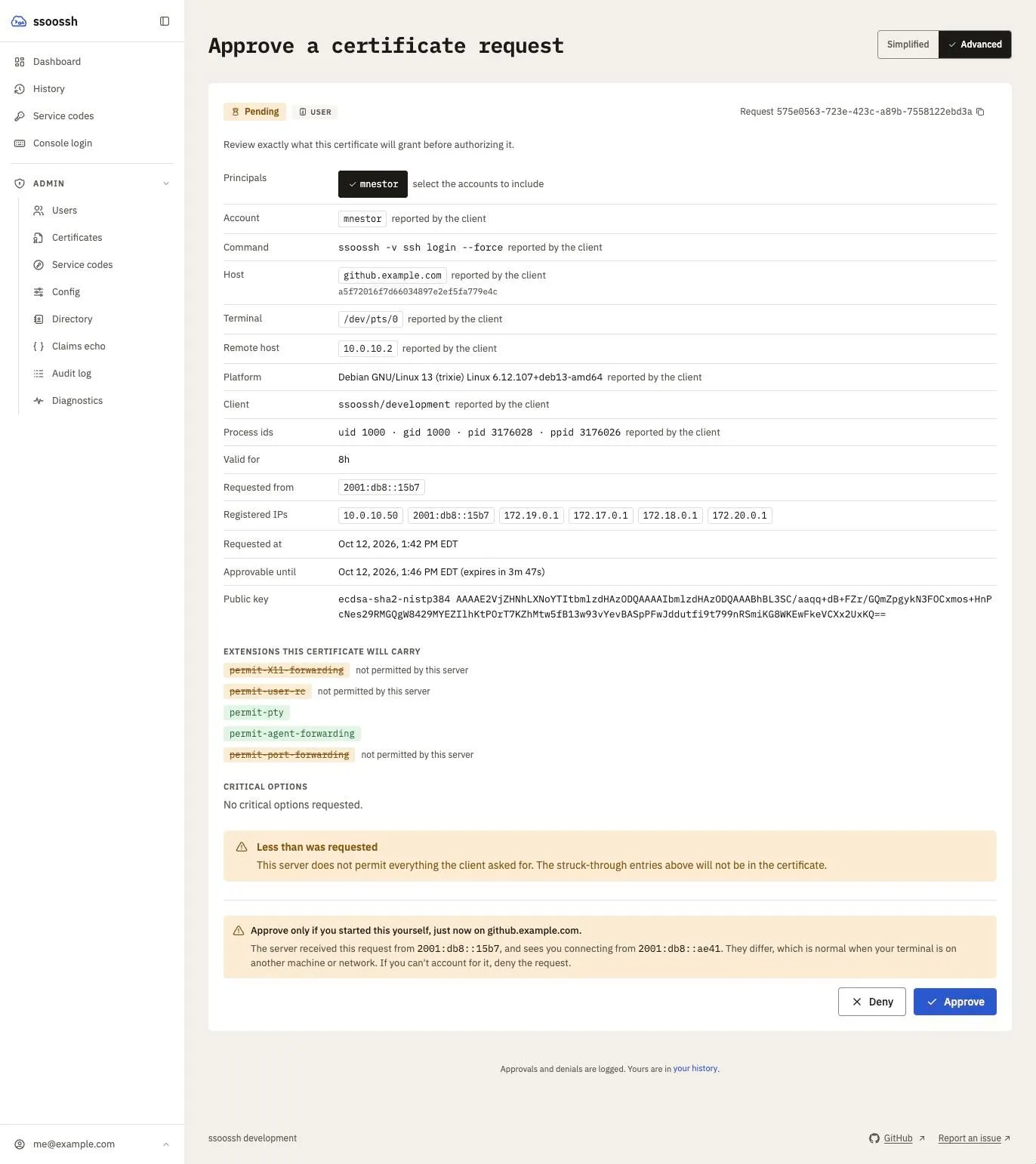
A user certificate request. Everything under "reported by the client" is what the requesting machine said about itself. The struck-through entries are what this server's policy removed, and the notice at the bottom says so before you decide.
What the page shows depends on the certificate type, but the shape is constant:
- Principals – which of your accounts the certificate will name. For a user, PAM, or console request you pick them from your own accounts as toggle chips. The chips start at the accounts you last approved a request of the same type with, in this browser, where the request offers them. With nothing remembered, a PAM or console request starts at the local account being acted as, when you hold it, because that is the account the host will match against, and a user request starts at your username. What you approve with is remembered on Approve, never on Deny; untick a chip to change it. A remembered selection only fills in the chips: nothing is approved until you press Approve.
- Valid for, Requested at, Approvable until – the certificate’s lifetime and the deadline on the decision itself.
- Requested from and the client’s registered IPs – where the request came from.
- Extensions this certificate will carry and Critical options – what was asked for, with anything server policy trimmed struck through, so you see the narrowing before you approve rather than after.
- Public key – the key being certified.
- A Decision record once a decision exists: the outcome, who made it, from which address, and when.
A PAM request is titled “Approve a PAM authentication” and describes a single
sudo (or other PAM) call, not an SSH session. A console request is titled
“Approve a console login” and describes an interactive session at the machine’s
console. Both show the machine, terminal, and account claimed by the caller,
clearly labelled as self-reported by an unauthenticated machine. A console
request that also reports a remote host is flagged outright, because a console
has nobody connecting to it over the network.
For a service enrollment, you also pick which of your service accounts the code mints for, and may set a notification address for it. See Service accounts.
The simplified approval page
Section titled “The simplified approval page”With the heading’s switch on Simplified (see
Simplified and Advanced),
the page opens with one line instead of the description and the account,
command, host and address rows: three tiles reading Who (the account and
the address the request came from, such as root@10.0.0.5), Runs (the
command) and On (the machine), with a reminder that the client reported
them and to approve only a request you just ran. Below that come the
principals, the claimed service, terminal, remote host and invoking user, how
long the certificate is valid for, the extensions it will carry, any
warnings, and the buttons.
The deadline is not shown until its last minute, when Expires in 0:42 counts down beside the buttons. A request that expired before anyone approved it says so and tells you to run the client again.
Choosing extensions on a service enrollment
Section titled “Choosing extensions on a service enrollment”Where the deployment configures
cert_options.service.extensions,
a service enrollment’s extensions appear as toggles, the same chips the
principal picker uses.
Three things about them are worth knowing, because this is the one place an approver can grant more than was asked for:
- They start at what the enrollment requested, not at everything on offer.
Approving without touching them grants exactly the request – which for an
enrollment made without
--extensionsis nothing at all. Configuring the setting makes toggles available; it does not by itself change what an untouched approval grants. - You may add as well as remove, up to the configured list. Nothing outside it can be selected or granted, whatever is ticked.
- No extensions is a valid answer. Unlike principals, an empty selection approves normally. A service certificate carrying no extensions is the ordinary posture for an unattended account.
What you choose is fixed at approval and stored on the enrollment. Every certificate the code later mints carries that set – redemption replays the decision rather than recomputing it, so nothing changes underneath the job between one retrieval and the next.
Approve or deny
Section titled “Approve or deny”Both record a decision, and the decision is final for that request. Neither asks you to confirm: the page itself is the review. Denial resolves the waiting client cleanly rather than leaving it hanging; a request nobody decides expires on its own.
An administrator cannot approve someone else’s request. Approval is bound to the identity that claimed the request, and there is no override.
Confirming a console login
Section titled “Confirming a console login”A machine with no browser – a physical tty, a serial console, a BMC or KVM
viewer – cannot print a URL anyone will transcribe. It shows an
eight-character code instead, written like K7M4-QP2X.
Sign in, open Console login in the navigation, and type the code. There is
also a /c/<code> shortcut a phone can open directly; it shows the code and
asks whether it is the one on the screen in front of you before it goes any
further, because a link, unlike a code on a screen, can be sent to anyone.
Resolving a code requires a session, so an unauthenticated caller can never
turn a code into a request, and resolving it claims the request: a second
person typing the same code is refused.
Only ever enter a code from a screen you are standing at. A code someone reads or sends to you is a login on their machine, carrying your accounts.
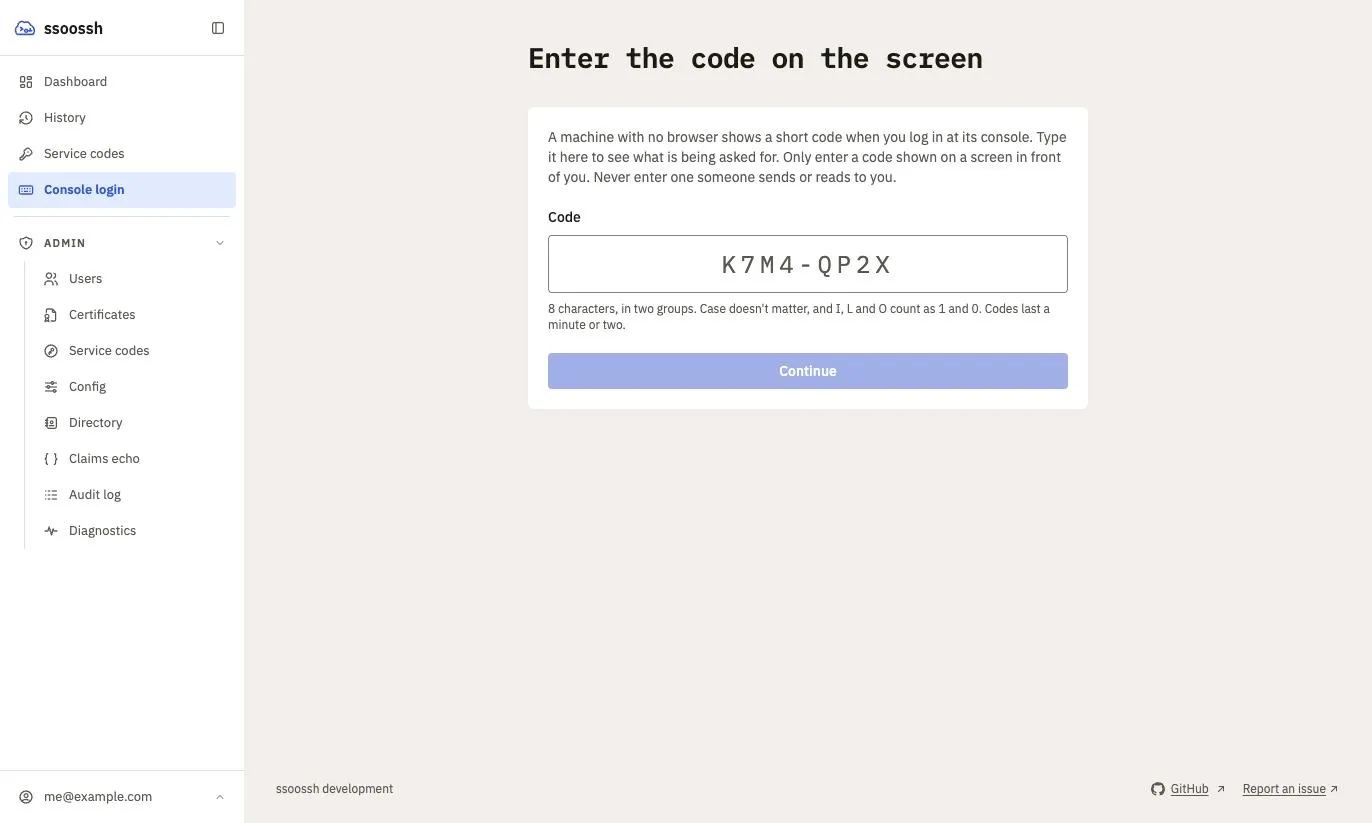
Console login. The code is eight characters in two groups; the alphabet leaves out the letters that look like digits.
The code is a control, not a convenience. You are approving a login for whoever is at that machine, and the certificate carries your identity, not theirs. Anyone who wants to borrow your access has to reach you and talk you through typing a code read off a console you cannot see, so treat an unexpected request to approve one as exactly that. The page names the machine, the service, the terminal and the account before you confirm.
Your history
Section titled “Your history”Three destinations in the rail hold your own history. Your account page is not among them: it sits in the drop-up behind your identity at the bottom of the rail, with preferences and sign-out.
| Page | What it holds |
|---|---|
| Dashboard | Your recent certificates, newest first |
History (/logs/me) |
Your full certificate history: search, then filters for type, status and outcome |
| Service codes | The service accounts you hold, then the codes approved for each |
| Account (identity drop-up) | Your identity, the accounts you can mint certificates for, your service accounts, and your groups |
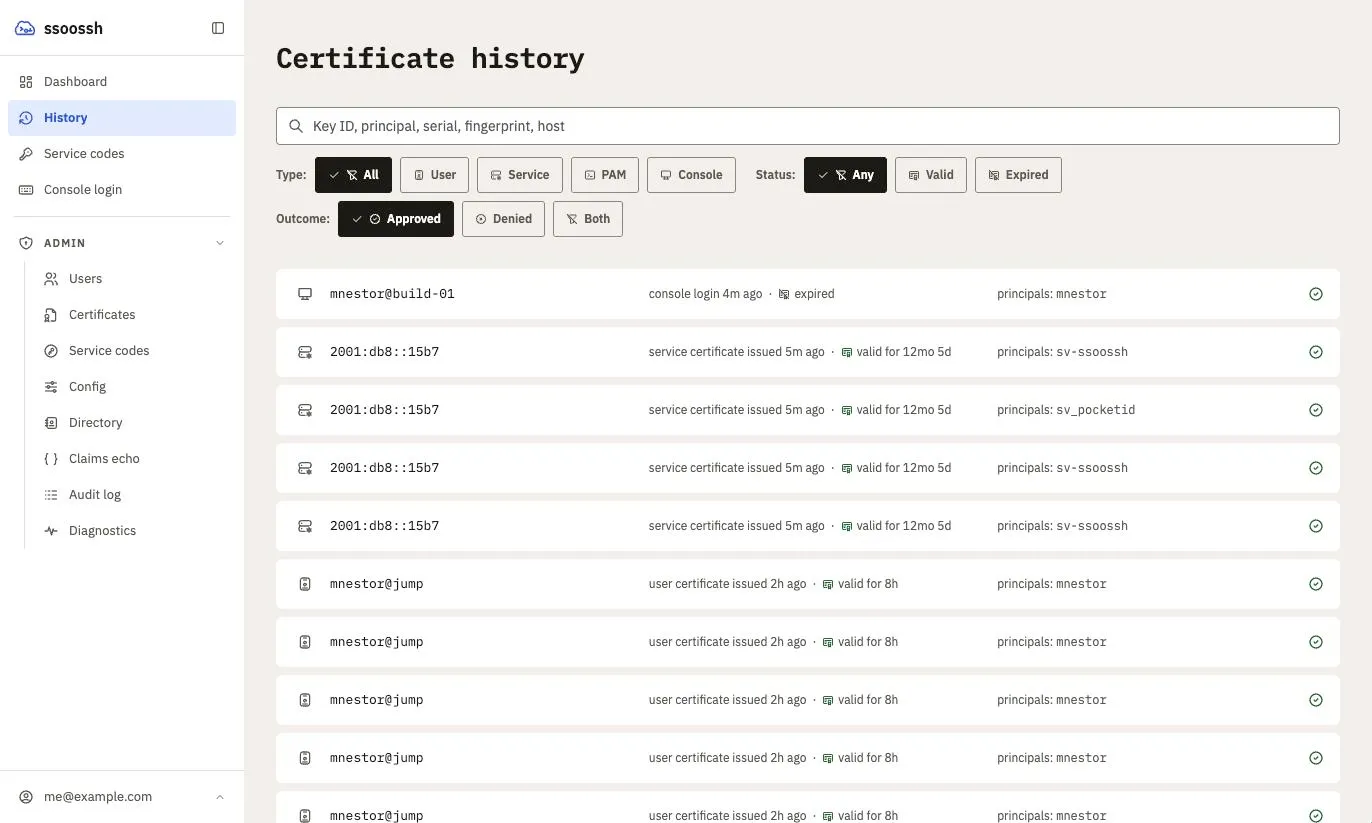
History. Every row leads with where the certificate came from, then what was requested and for how long, the principals it carries, and the decision.
A row leads with where the certificate came from: the user@host the client
reported for an interactive request, or the address a service certificate was
actually fetched from, falling back to the key ID. The row is a link to the
certificate’s own page, /certs/<id>, which can be reloaded and shared and
carries a back chip to the list it was opened from.
A search or filter that matches nothing says so and offers Clear filters, which is different from a history that is genuinely empty.
Each certificate is traceable to what produced it. A service certificate links back to the code it was redeemed from and shows where it was fetched from, which is a different fact from the approval’s source address – that one belongs to the human who approved the code and is identical on every certificate the code mints.
The Service codes view never shows a code. It lists the accounts you hold
and, inside each, the codes approved for it. A code’s own page shows what a
redemption grants, the code’s valid period with the time remaining, who
holds the account, and a redemption history naming each fetch’s address and
serial; at Simplified it shows how many times the code was redeemed instead of
the history and the holders. Every holder of an account sees its codes,
whoever approved them, and every holder can end one early with Expire this
code, which asks for a reason and records it. There is no endpoint that
returns a code: it exists on the wire exactly once, in the output of the
service enroll that created it.
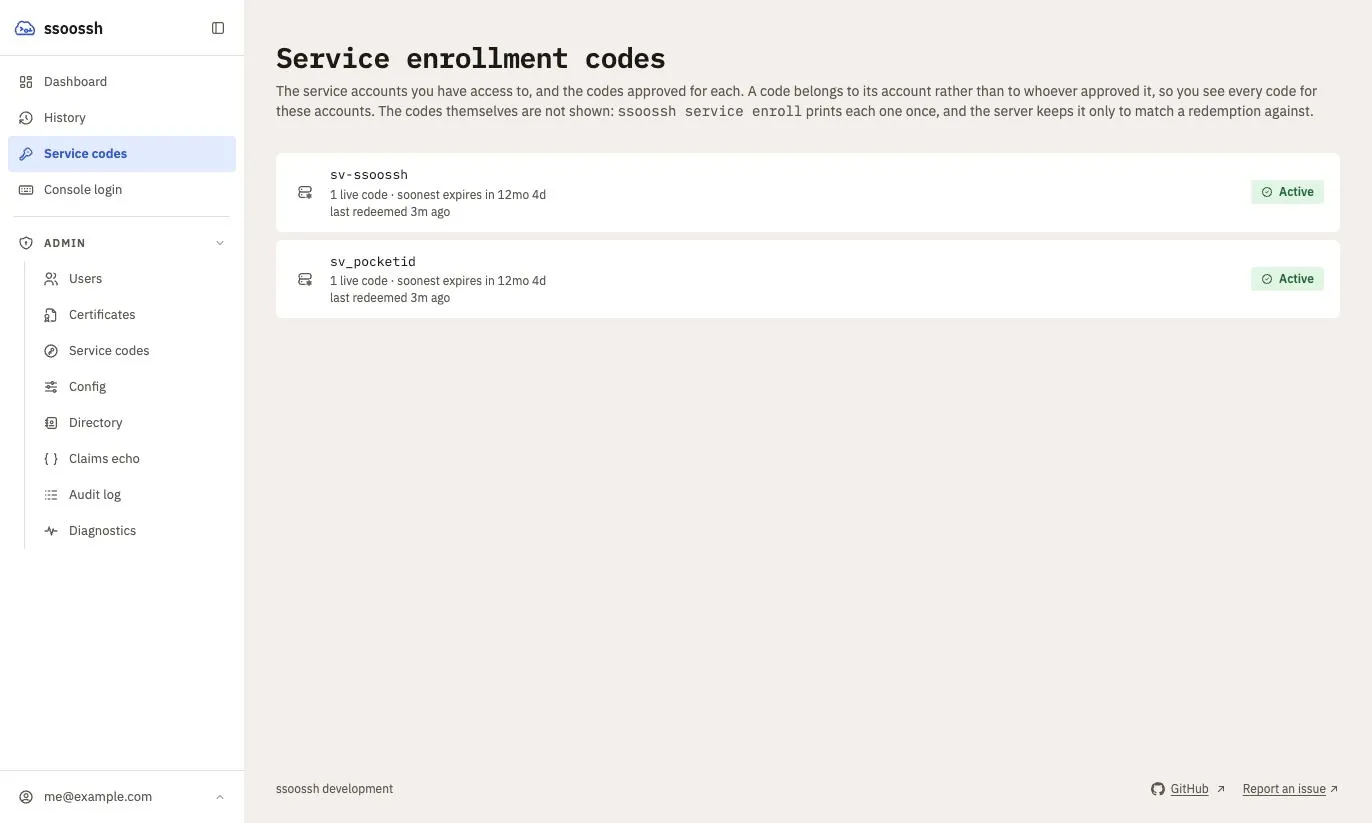
Service codes, at the account level. Opening an account lists its codes; opening a code shows what it hands out and who can see it. See [Service accounts](/ssoossh/guides/service-accounts/) for that page.
Preferences
Section titled “Preferences”Preferences, in the drop-up behind your identity in the rail, holds two sections: which notification emails you receive and how much they carry, and how much detail the approval and detail pages show. There is no Save button: every setting saves the moment you change it. If a save fails, the setting switches back and says “Not saved. Try again.” beside it.
Email notifications
Section titled “Email notifications”Email is optional and off unless the deployment turned it on. When it is on, this is where you choose which kinds you receive, one switch per kind, in two groups: Service codes and Certificates issued to you.
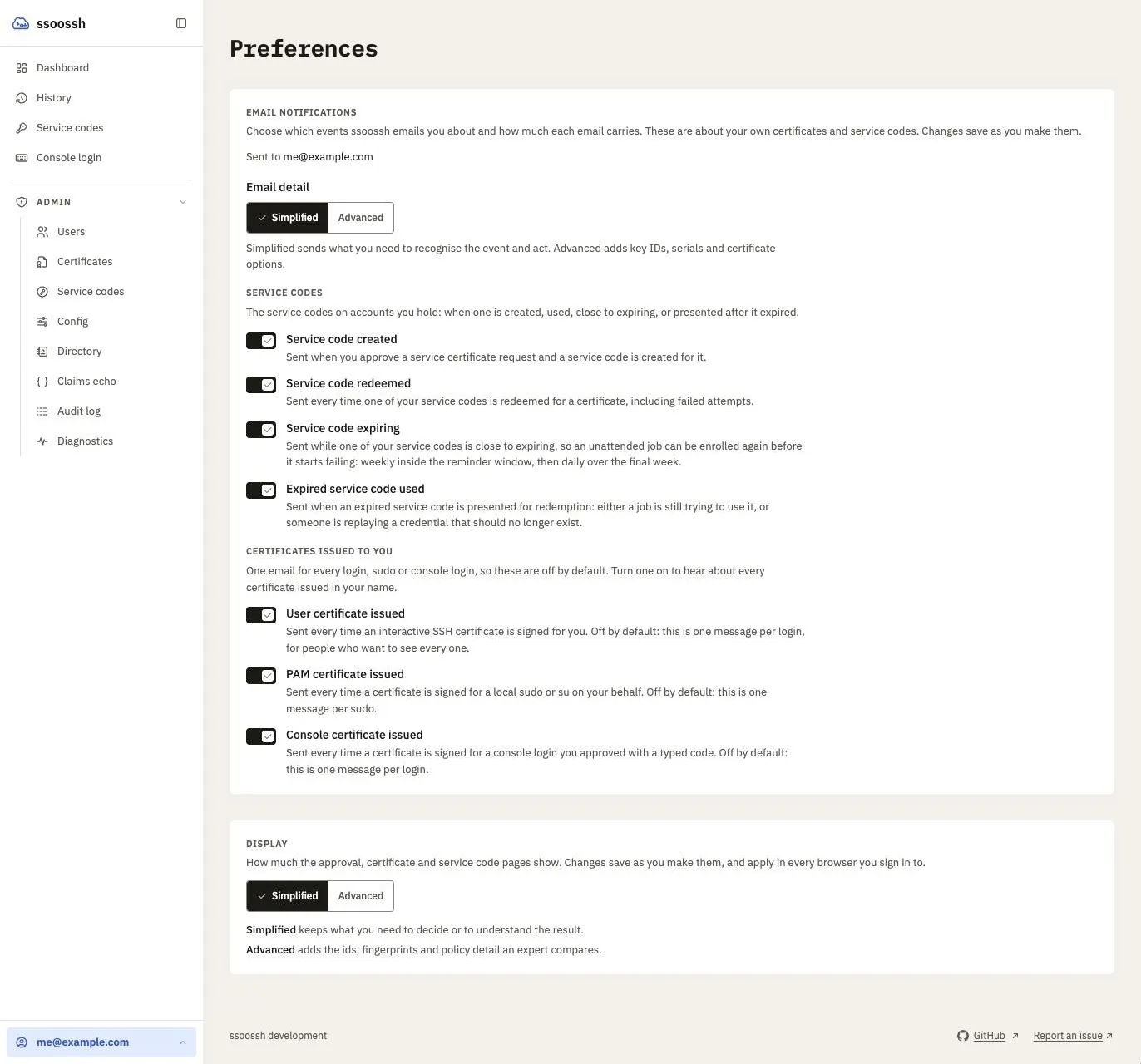
Notification preferences. The page names the address the deployment will use, and says under each kind what would trigger it.
| Notification | Default |
|---|---|
| Service code created | on |
| Service code redeemed | on |
| Service code expiring | on |
| Expired service code used | on |
| User certificate issued | off |
| PAM certificate issued | off |
| Console certificate issued | off |
The three “was this you?” kinds default off because they are one message per
login, per sudo, and per console login respectively. They are separate kinds
so someone who runs sudo forty times a day can keep the login signal without
drowning in the rest. Nothing turns them on for you.
Email detail sets how much each message carries. Simplified sends what you need to recognise the event and act: what happened, when it stops being valid, where it was requested and approved from, and a link to the page where you can act on it. Advanced adds a Details section with key IDs, serials and certificate options. It is separate from the Display level below. Your first sign-in sets it the same way: Advanced for SOC and admin, Simplified for everyone else. A service code’s own notification address has no account behind it and always gets Simplified.
Your choice is read at delivery rather than when the event happens, so opting out also stops something already queued. In a service-account fan-out each holder’s own choice gates only their own copy.
Two things stop delivery regardless of the toggles, and the page says so: mail being disabled server-side, and an identity whose provider releases no email address.
The enrollment code is in no message and must not be added to one.
Display
Section titled “Display”The Display section sets the level the approval page and the certificate and service code pages open at: Simplified or Advanced (see Simplified and Advanced). It takes effect at once and is saved to your account, so it follows you to any browser. The switch in each of those pages’ headings is the same setting. Your first sign-in picks it: Advanced for SOC and admin, Simplified for everyone else.
What administrators can do to your account
Section titled “What administrators can do to your account”Roles come from OIDC groups named in the server’s configuration, not from a database flag, and they fail closed: an unset group authorizes nobody.
| Role | Can do |
|---|---|
| Auditor | View the effective server configuration (a fixed, chosen set of fields, never secrets) and certificate history across all users |
| SOC | Everything an auditor can do, plus disable and re-enable a user and expire any service enrollment early (a holder can already expire the codes of an account they hold, with no role at all) |
| Admin | Everything above, plus the deployment-wide operations: diagnostics, claims echo, and the directory sync and probe |
Admins inherit SOC and auditor access, and SOC inherits auditor access. Whoever can disable an account can also re-enable it.
Disabling takes effect immediately and is fail-closed at login: a transient database error denies rather than admits. A session that is already open ends on its next request, so a disabled account cannot keep approving in a browser tab it signed in to earlier. Certificates already issued stay valid until they expire: ssoossh never stores them, so there is nothing to revoke. A reason is required and is recorded; you land on a page that can carry an operator-set message and contact address.
Disabling does exactly that and no more. Service enrollments you approved keep working, because they belong to their service accounts rather than to you, so unattended jobs keep running and the account’s other holders keep control. Re-enabling restores your ability to authenticate; enrollments that already expired are not restored, and it too records a reason.
What no role can do is approve someone else’s request, raise a policy ceiling, grant admin, or alter the audit trail. A compromised web tier can deny service; it cannot widen access.
Where to go next
Section titled “Where to go next”- The web UI – the rail, where each page lives, and the detail pages you can link to.
- Service accounts – the enrollment you approve on this page, from the other end.
- Diagnostics – when the client never reaches the approval page at all.
- User FAQ.